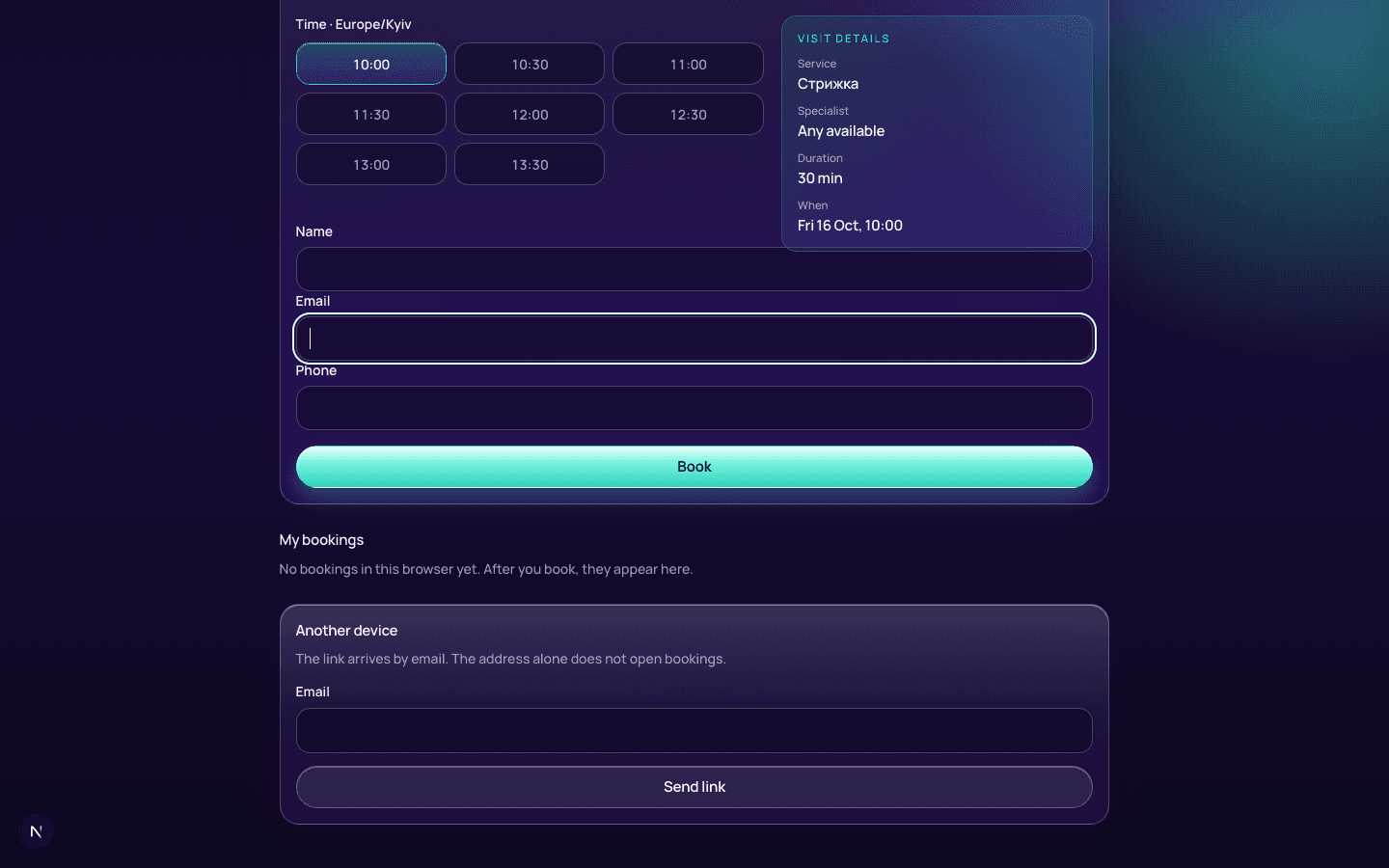
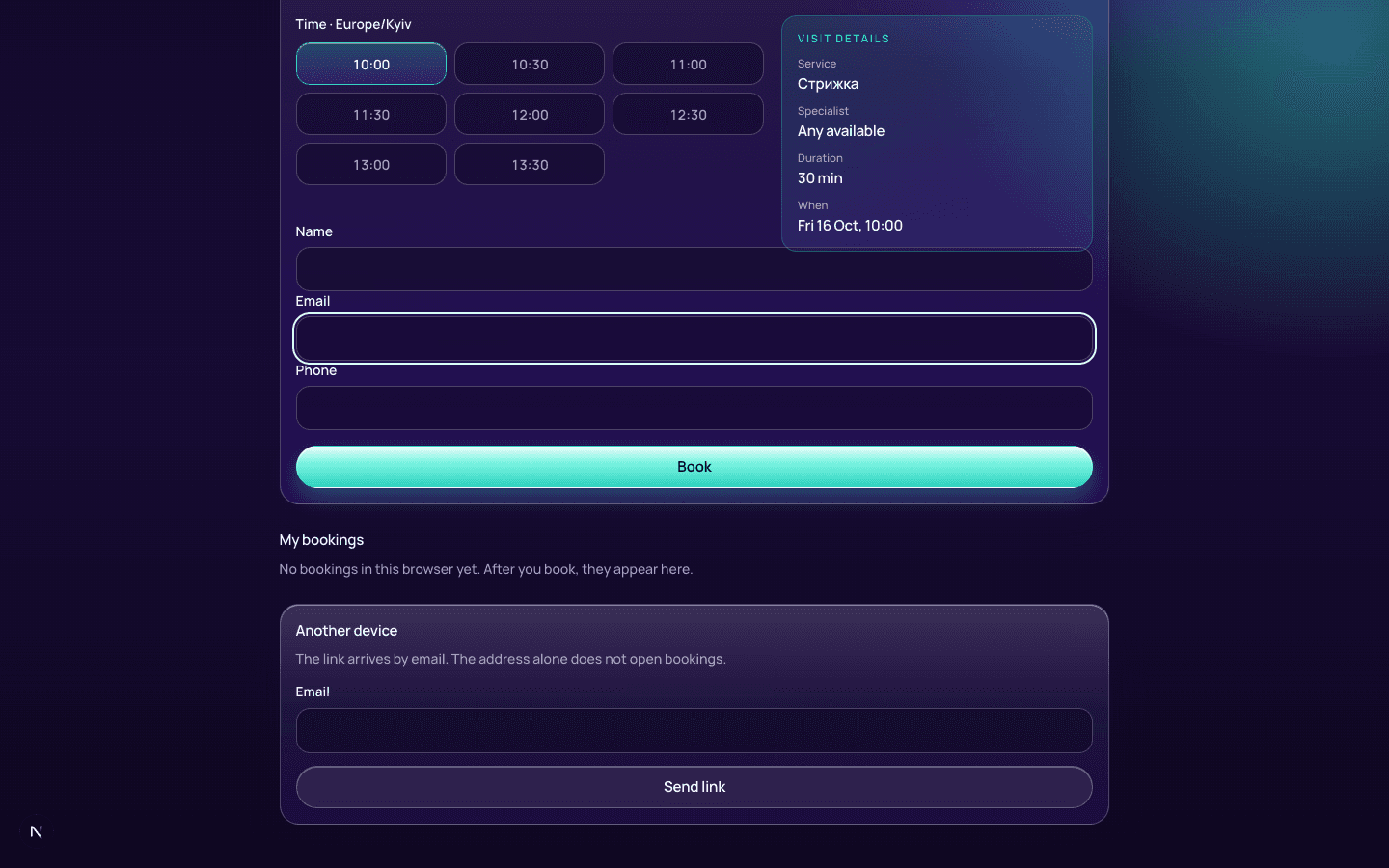
Eight steps from signup to a client link.
Owner account and booking page address.
- Open Create business.
- Enter name, booking page address, email and password.
- Choose the business timezone and press Create account.
Create businessCreate account
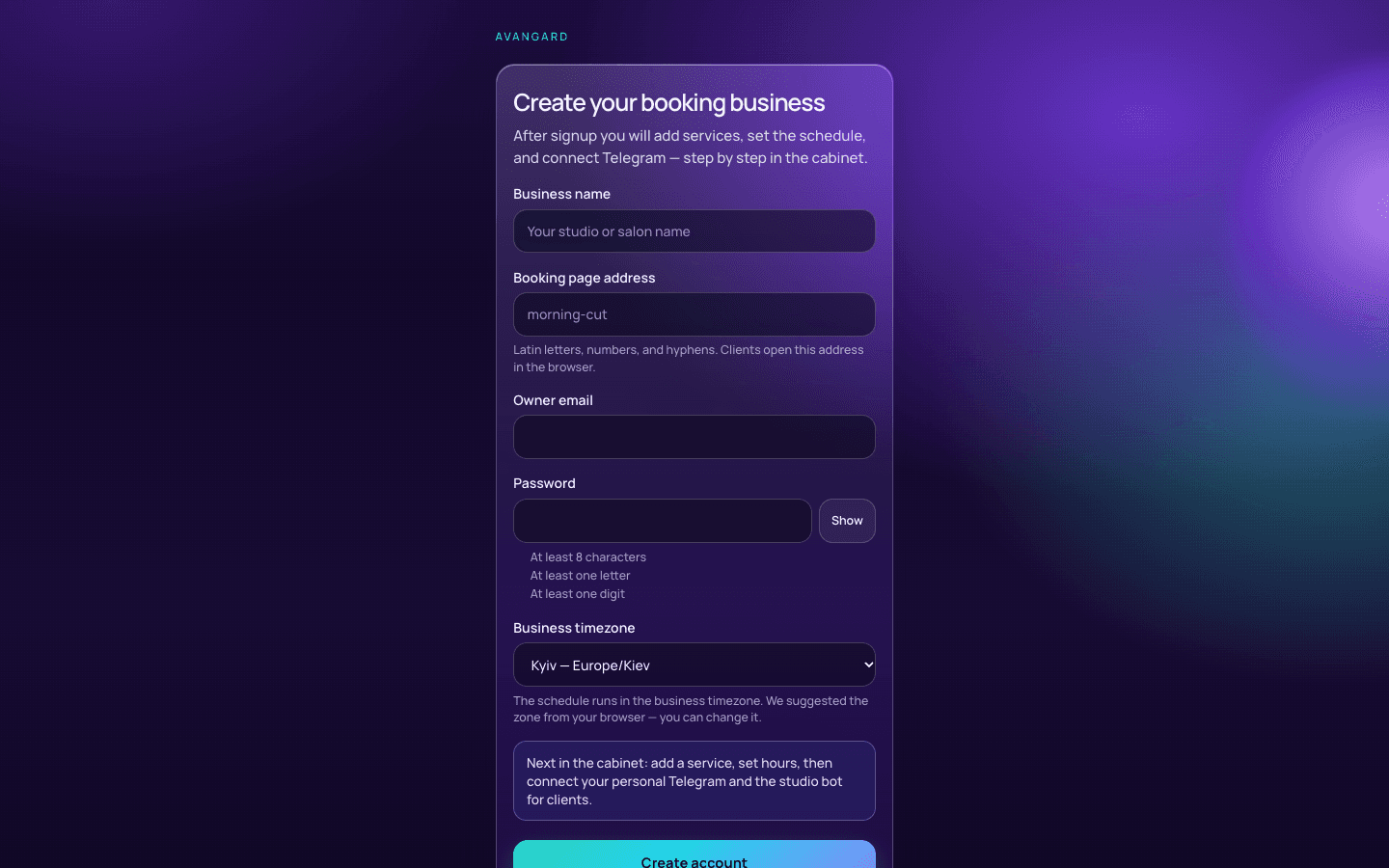 Step: create account
You are in the cabinet with the business setup card.
If the address is taken, change Booking page address and retry.
Next →
02Service and duration
In the cabinet
At least one bookable service exists.
- In the onboarding card press Add a service or specialist, or open services.
- Press + Add service, enter name and duration in minutes.
- Save the service.
Add a service or specialist+ Add service
The service appears in the list and setup progress.
Without duration, slots cannot be calculated — Duration (minutes) is required.
Next →
03Specialist and service
In the cabinet
A specialist is linked to the service.
- Add a specialist in the team catalog.
- Assign the created service to them.
Add a service or specialist
Clients see the specialist or “any available”.
If the service has no specialist, go back and assign one.
Next →
04Working hours
In the cabinet
Days and hours when clients can book.
- Press «Set the schedule».
- Choose workdays and shift start/end hours.
- Save the schedule.
Set the schedule
Open slots appear in client booking.
Empty workdays mean clients see “no open times”.
Next →
05Personal Telegram
Cabinet and Telegram
The cabinet is verified with your personal Telegram.
- Press Connect personal Telegram.
- Confirm in Telegram that the cabinet is yours, then return to the cabinet.
Connect personal Telegram
Personal Telegram is marked done; clients do not message this chat.
If the step did not update after Telegram, refresh Overview; progress comes from the server.
Next →
06Business bot
Cabinet and Telegram
Clients can open booking in the studio bot.
- Press «Open the business bot panel».
- Create or finish bot connection in the cabinet — clients never use BotFather.
- Wait until the client menu is ready; incomplete activation is not “ready”.
Open the business bot panel
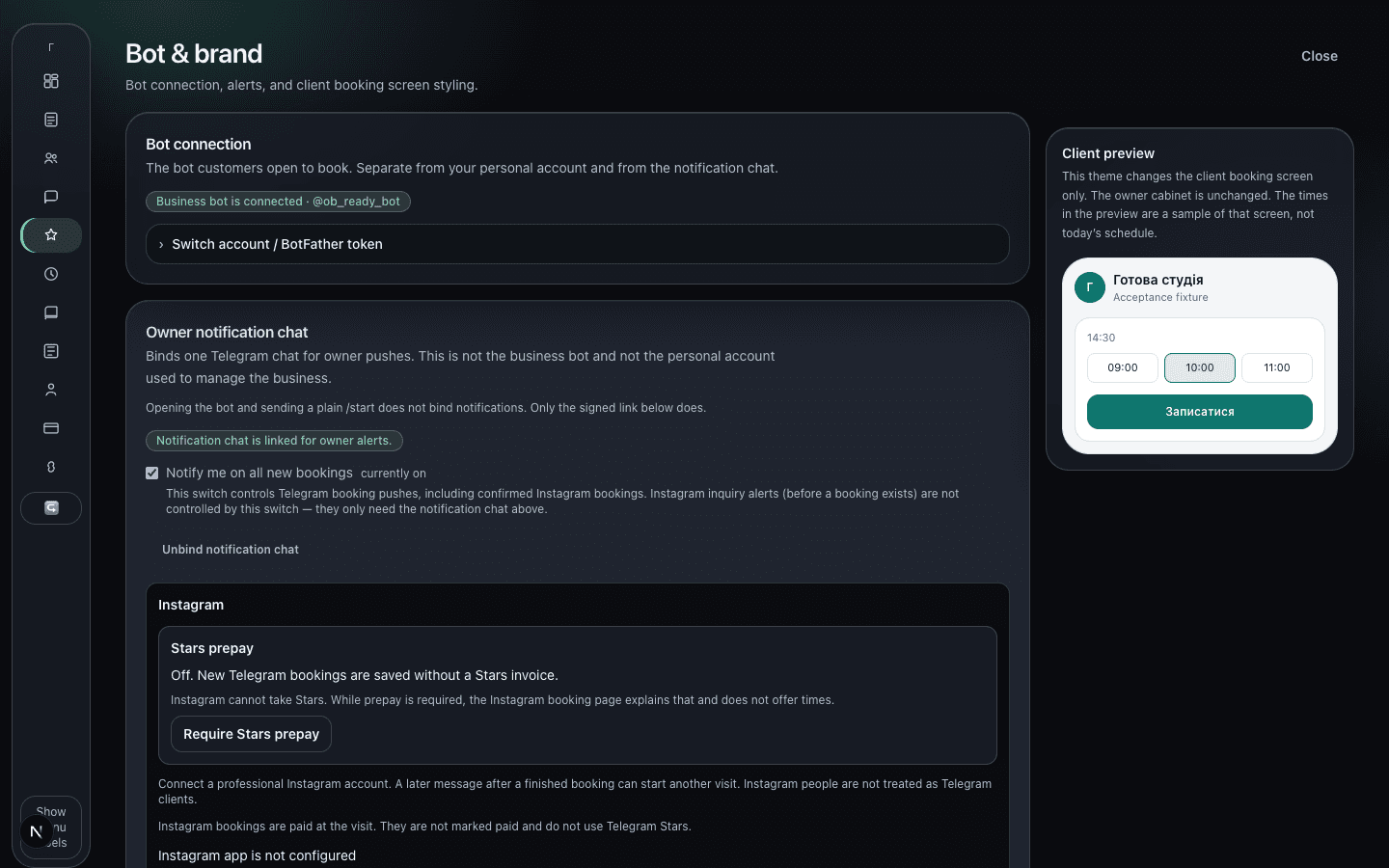 Step: business bot
A studio bot link for clients appears.
Retry after an error continues the same attempt — do not create duplicate bots.
Next →
07Alerts chat
Cabinet and Telegram
New bookings appear in a separate alerts chat.
- Press Connect alerts chat.
- Finish linking in Telegram and return to the cabinet.
Connect alerts chat
New-visit alerts go to this chat, not as personal DMs to clients.
Do not confuse the alerts chat with the client bot.
Next →
08Client page and sharing
In the cabinet
Clients have a link or bot to book.
- Open Overview — a ready studio shows bot and browser booking links.
- Copy the link or QR and place it where clients find you.
CopyOpen
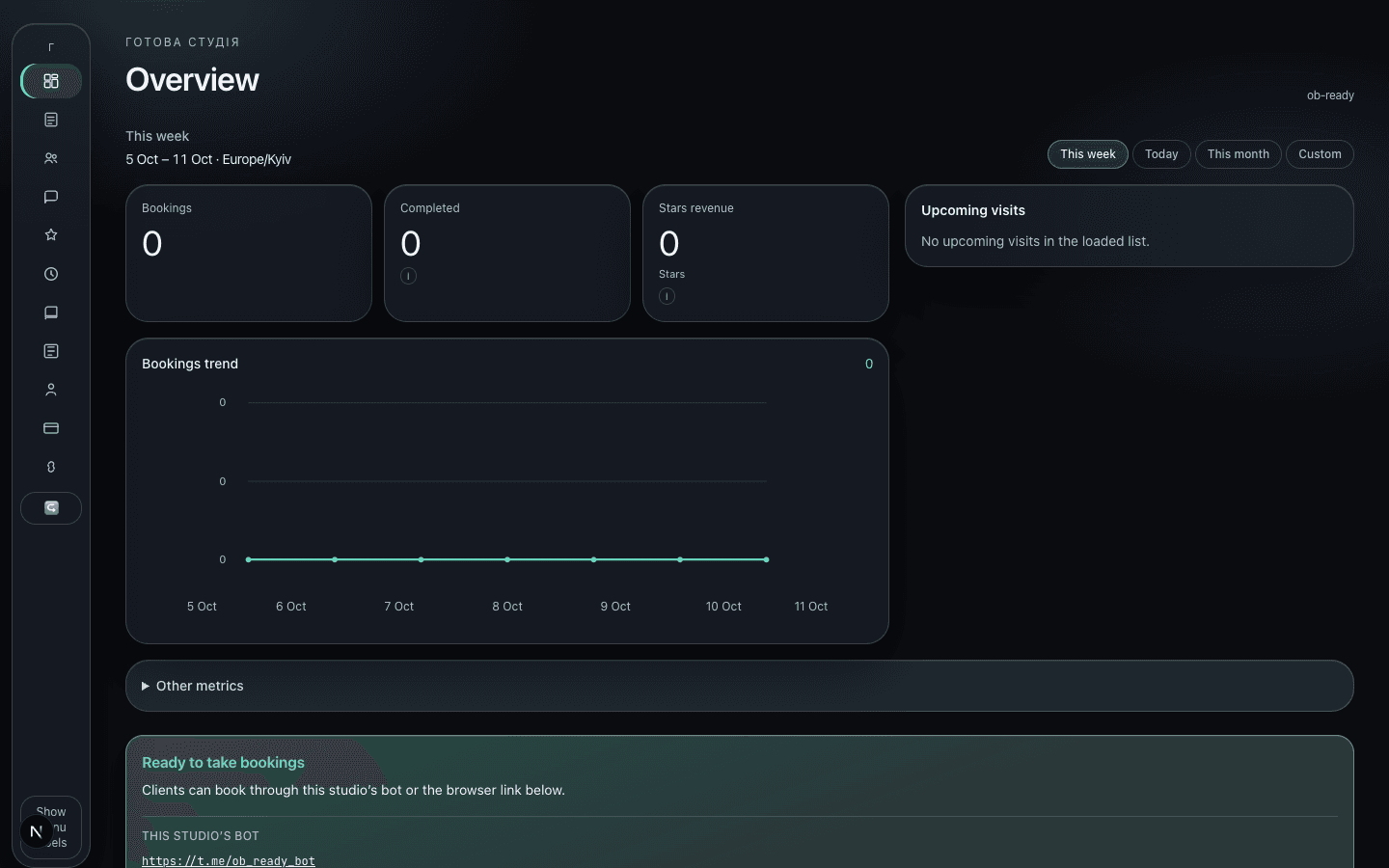 Result: links ready
A ready studio sees working links, not the setup wizard again.
If the wizard returns, check unfinished bot or schedule steps.
Next →